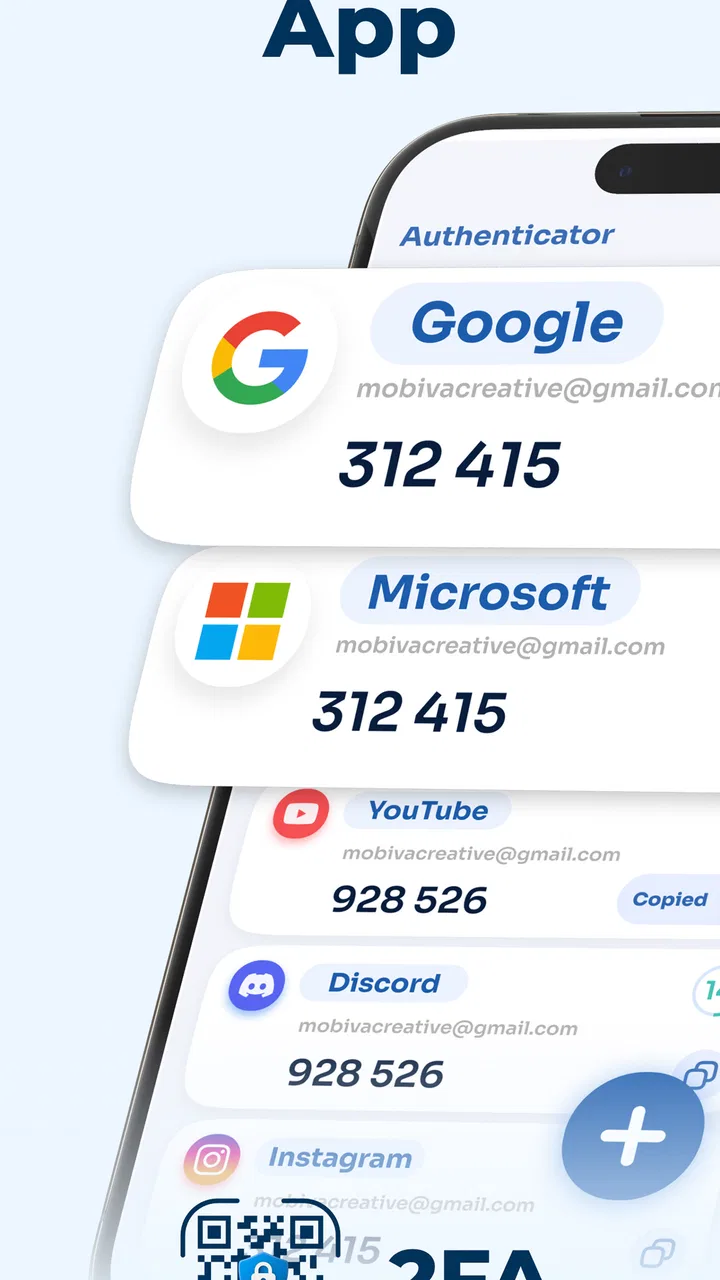
Authenticator App - 2FA Auth
- 4.6
- Rating
- 1.00M
- Installs
- Free
- Price

 Analysis by App-foxy
I use an authenticator app for one simple reason: when a login asks for a temporary security code, I want that code ready without digging through messages or waiting for a text to arrive. Authenticator App - 2FA Auth takes that focused approach. It is a free tools app from Universe Digital Hizmetler, designed around authentication through 2FA, OTP, and MFA rather than trying to become a general password manager or a larger security suite.
That narrow purpose is its biggest advantage. The app is aimed at people who want an additional sign-in step for compatible online accounts and prefer generating codes on the phone. In my experience, this kind of tool is most useful when it stays out of the way: open it, find the account, read the current code, and return to the login screen. The important question is not whether it offers a long list of extras, but whether it fits smoothly into that small daily routine.
How Authenticator App - 2FA Auth feels in everyday use
The first thing I noticed is that the app’s job is easy to understand. Its short description, “Authenticator App,” is plain, and the wider store summary points directly to 2FA, OTP, and MFA. That clarity matters because security tools can become confusing when they mix code generation with password storage, identity management, backup services, and account recovery features. Here, the intended role is much more focused.
You May Also Like

 Blood Strike: 2.5 Anniversary
Blood Strike’s Loadouts Turn Every Drop Into a Tactical Gamble
A close look at Blood Strike’s custom loadouts: how fast access to signature weapons reshapes its battle royale rhythm, rewards preparation, and narrows the gap between fights.

 Pandora - Music & Podcasts
Pandora’s Music Is Easy to Start, but Harder to Recover
Pandora’s strength is its low-effort path from a seed to a station. Its weak spot is how much confidence it asks you to place in connection, setup, and quiet recovery.

 8 Ball Pool
 Is Built on Rivalries, Rematches, and Routine
A close look at the rivalries, rematches, shared routines, and unanswered safety questions that turn a quick pool match into a persistent mobile community.

 Samsung Music
’s Quiet Strength Is Playing What You Already Own
Its reach comes less from spectacle than from dependable access to a personal library. That simplicity is both the app’s strongest retention engine and its ceiling.

 AccuWeather: Weather Radar
AccuWeather Review: A Quick, Clear Forecast for Everyday Decisions
For everyday plans, the best forecast is the one you can understand quickly. AccuWeather makes rain timing, radar, and local conditions easy to act on, with a few trade-offs.

 Hill Climb Racing
Why Hill Climb Racing Still Turns Crashes Into One More Run
A tiny car, a bumpy hill and one more upgrade: Hill Climb Racing keeps resurfacing because its simple chaos makes every near-miss feel personal.
More From Our News Desk



For a typical login, the workflow is familiar. I would set up an account that supports an authenticator, open the app when prompted for a verification code, and enter the currently displayed number. The practical benefit is avoiding dependence on a message arriving at exactly the right moment. That can be helpful when I am signing in while travelling, switching between networks, or trying to complete a login quickly.
The app is free to install, which makes it easy to try without committing money first. There are also in-app purchases ranging from under a dollar to several dozen dollars per item. I would therefore check any purchase screen carefully before confirming anything, especially if I only need a straightforward code generator. The free starting point is attractive, but the presence of optional purchases means I would not assume that every possible convenience is included without checking the interface.
Speed: quick access matters more than flashy features
An authenticator does not need elaborate animation or a complicated dashboard. Its performance is judged in a few seconds: how quickly it opens, how quickly I can identify the right account, and whether the code is visible when I need it. Because the core task is lightweight, I would expect the app to feel responsive on a reasonably modern phone. The experience can still vary with the device, available memory, and the number of other apps competing for attention, so I would avoid treating a fast first impression as a guarantee for every phone.
One useful habit is to organize the app around the accounts I use most often. If several services are configured, the difference between immediately spotting the right entry and scanning a cluttered list becomes noticeable. I would also keep the account names recognizable rather than relying on vague labels. That is not a glamorous tip, but it reduces mistakes during a rushed login and makes the app feel faster because I spend less time searching.
The temporary nature of OTP codes creates another small pressure point. If I open the app only after switching back and forth between several screens, I may find that a code is close to changing. In that situation, waiting for the next code can be less stressful than entering one at the last second. The app’s value is not just displaying a number quickly; it is helping me complete the whole handoff between the authenticator and the service I am signing into.
Heavy-use moments and practical friction
Most people will not use an authenticator continuously for hours. Heavy use usually arrives in bursts: setting up several accounts after changing phones, signing into multiple services during a work session, or checking codes repeatedly while troubleshooting an account. Those are the moments when small design choices become more important than the basic promise of 2FA.
When configuring multiple accounts, I would slow down and verify each setup before moving to the next one. A code that looks correct is not enough; the service must accept it successfully. Keeping the original setup information and recovery material from each service in a safe place is equally important. An authenticator can generate codes, but it cannot replace the recovery process offered by the account provider. That distinction is easy to overlook when everything works normally.
There is also a trade-off between convenience and exposure. Having all of my codes in one phone is simpler than carrying another device, but it makes the phone more important. If I hand the phone to someone unlocked, leave it unattended, or lose access to it, the authenticator becomes part of the recovery problem. I would protect the phone itself and avoid treating the app as a complete answer to account security.
A realistic example is signing into an email account on a shared computer. I would enter the password, open the authenticator on my phone, read the current code, and finish the login without waiting for a text message. If the code changes while I am typing, I would wait for the next one rather than repeatedly guessing. Afterward, I would sign out of the shared computer and avoid saving the session there. The app handles the code step, but safe habits still handle the rest.
Reliability depends on the whole account setup
The strong user rating—an average of 4.6 from around 33 thousand ratings—suggests that many people find the app useful. Its install base of over 500 thousand also indicates that it is not an obscure experiment with no visible adoption. I see those figures as encouraging signals, not as a substitute for testing the app with the accounts that matter most to me.
Reliability in this category has two separate meanings. The first is whether the app opens and shows codes consistently. The second is whether the codes remain synchronized with the online service. A phone can be working perfectly while a setup mistake, an incorrect transfer, or a time mismatch causes a code to fail. That is why I would test each account immediately after adding it, while I still have another sign-in method available.
Recovery deserves special attention. Before relying on the app for an important account, I would locate that account’s backup codes or alternative verification method and store them somewhere safe. I would also think through what happens if the phone is lost, reset, damaged, or unavailable. This is one of the most important non-obvious lessons with any authenticator: the smoothest daily workflow can create a painful emergency if recovery is postponed until after the problem occurs.
I would not uninstall the app casually after moving to a new phone, and I would not erase an old device until every important account has been tested on the replacement. The correct migration process belongs partly to each online service, so the app should be treated as one component in a larger setup. That may sound cautious, but it is far better than discovering during an urgent login that a code source was never transferred properly.
Device support and resource expectations
The app supports Android devices running version 7.0 or later, which gives it a broad compatibility range for people who keep older phones in service. That is helpful for a secondary handset or a budget device, although compatibility alone does not tell me how comfortably it will behave on every model. Older hardware can have slower app launches, more aggressive background management, or limited storage, and those factors can affect the overall experience even when the operating-system requirement is met.
An authenticator is generally a lighter type of tool than a video editor, game, or navigation app. I would therefore expect modest everyday demands when it is used only to retrieve codes. Still, I would not make unsupported claims about battery use, memory consumption, or background activity. The sensible approach is to observe the app on the particular phone I own, especially if that phone already struggles with multitasking.
On an older device, I would keep the workflow simple: open the app when needed, read the code, and close it after finishing the login. If the phone uses aggressive battery or memory management, I would pay attention to whether returning to the app takes longer after switching away. That is not necessarily a fault in the authenticator itself, but it can make a two-device login feel less smooth.
Version 1.2 is the current version, and the app was released on June 3, 2025. Those details are useful context for expectations: the project is relatively new, so I would be comfortable trying it for ordinary accounts but more deliberate before making it the only access route for an account where downtime would be costly. I would keep the app updated through the normal store process and retain recovery options regardless of version.
Where it fits among the usual alternatives
The usual alternatives fall into a few groups. Some people use SMS codes, some choose an authenticator built into a broader password manager, and others prefer a platform-specific authentication tool. SMS can be easier for beginners because it requires no separate app setup, but it depends on receiving a message and carries different security considerations. A password manager may be more convenient for someone who wants passwords and verification codes in one place, while a dedicated authenticator can feel cleaner for someone who wants those functions separated.
This app makes the most sense for the person who wants a focused tool and does not need a large security ecosystem. I would recommend it to someone setting up 2FA on personal accounts, someone tired of waiting for text messages, or someone using an Android phone that still meets the minimum operating-system requirement. Its straightforward purpose may also appeal to a family member who finds full password-management suites overwhelming.
I would choose a different option for a person who expects one-tap password filling, extensive cross-device synchronization, a complete password vault, or a carefully integrated recovery system. I would also be cautious if I regularly move between phones or need a managed solution for many work accounts. In those cases, an established password manager or an organization-approved authentication platform may reduce the amount of manual planning.
Another trade-off is separation. Keeping authentication codes apart from passwords can be a sensible security choice, but it means I have to switch between tools. That extra step is minor for occasional logins and more noticeable when I am signing into many services in succession. The right choice depends on whether I value a focused authenticator more than an all-in-one workflow.
Small habits that make the app safer to live with
I would begin with a low-risk account rather than immediately moving every important login. That gives me a chance to understand the setup flow, confirm that codes are accepted, and see how the app behaves on my phone. Once that routine feels dependable, I would add more accounts one at a time and record each service’s recovery method separately.
I would also avoid storing screenshots of setup secrets in an ordinary photo gallery. A screenshot may seem convenient during configuration, but it can remain visible in backups, shared albums, or recent files. The safer workflow is to use the service’s intended setup process, keep recovery information in a protected place, and delete temporary material that is no longer needed.
For frequent travel, I would test the authenticator before leaving home and make sure I know how to unlock the phone without relying on a network connection. The login service itself may still require connectivity, but the code-generation step should not be treated as something to troubleshoot for the first time in an airport or hotel lobby. A short test can reveal whether the account was configured correctly and whether the phone’s clock behaves normally.
Finally, I would review the account list occasionally. Removing accounts that are no longer used can reduce clutter, while renaming entries clearly can prevent selecting the wrong service. These are simple maintenance steps, but they are especially valuable when a burst of logins makes the app feel busy.
My performance verdict
After looking at the app as a daily security tool rather than a feature showcase, I see a practical proposition. Authenticator App - 2FA Auth is free to start, focused on authentication codes, available for Android 7.0 and later, and backed by a strong average rating. The basic workflow should suit people who want a dedicated place for 2FA, OTP, and MFA codes without adopting a larger password-management system.
Its limitations are mostly about responsibility and scope. It does not remove the need for account recovery planning, careful setup, or protection of the phone. People who want automatic password filling, broad synchronization, or a complete security suite may be happier elsewhere. The optional purchases also mean I would inspect what is offered before paying, rather than assuming that every useful extra is part of the free experience.
My recommendation is positive for focused, everyday 2FA use, with one condition: set up recovery before you need it. If you want a straightforward authenticator for personal accounts and your phone meets the Android requirement, this is a reasonable app to try. I would judge it by how quickly I can find a code, how confidently I can recover access after a device problem, and whether it remains comfortable during several logins in a row. On those terms, it looks like a useful tool, provided I treat it as one part of account security rather than the entire solution.
FAQs for Authenticator App - 2FA Auth
01What is the primary function of the Authenticator App - 2FA Auth?
The Authenticator App - 2FA Auth primarily serves as a two-factor authentication tool, enhancing the security of your online accounts. It generates time-based one-time passwords (TOTPs) that you can use alongside your regular login credentials to provide an additional layer of security, making unauthorized access much more difficult.
02Is the Authenticator App compatible with all devices?
Yes, the Authenticator App - 2FA Auth is compatible with both Android and iOS devices. It is designed to work seamlessly across a wide range of smartphones and tablets, ensuring that you can enhance your security regardless of your device. Always ensure your device is running the latest OS version for optimal performance.
03How does the app handle data privacy and security?
The Authenticator App - 2FA Auth prioritizes user privacy and security by not storing or transmitting any personal data to external servers. Your generated codes are stored locally on your device, ensuring that only you have access to them. This local-only approach minimizes the risk of data breaches.
04Does the Authenticator App work offline, and how reliable is it?
Yes, the Authenticator App - 2FA Auth works offline. It generates one-time passwords using a time-based algorithm that doesn't require an internet connection. This feature ensures you can always access your codes, even in areas with limited connectivity, maintaining reliability and convenience.
05Can I transfer my authentication codes to a new device?
Yes, transferring authentication codes to a new device is possible. The app provides a backup and restore feature, allowing you to export your codes securely and import them to your new device. This ensures you do not lose access to your 2FA codes during device upgrades or replacements.
Pros
- User-friendly interface for easy navigation.
- Supports multiple accounts simultaneously.
- Offers backup and restore options.
- Customizable themes for personalization.
- Works offline once set up.
Cons
- Limited compatibility with older devices.
- No direct support for biometric login.
- In-app ads can be intrusive.
- Sync issues with certain cloud services.
- No dark mode for battery saving.

Authenticator App - 2FA Auth
Gallery